How to import trades from NinjaTrader to TradesPad?
To get the most out of TradesPad and import your trades, you can easily import CSV files from Ninjatrader. Below, we'll explain how to export a CSV and import it to TradesPad step by step.
Step 1: Access your TradesPad account
Once logged into your TradesPad account, go to the Accounts section from the main menu.
Step 2: Add a new account
Click the Add account button.
In the dropdown, select the Automatic option to connect your trading account.
Select Ninjatrader as the platform.
Fill in all required fields and press save.
Step 3: Export your trades from Ninjatrader
Open the Ninjatrader app in desktop.
Ensure it is in English. Otherwise, see Changing language below.
Open
New > Trade Performancein the top toolbar.
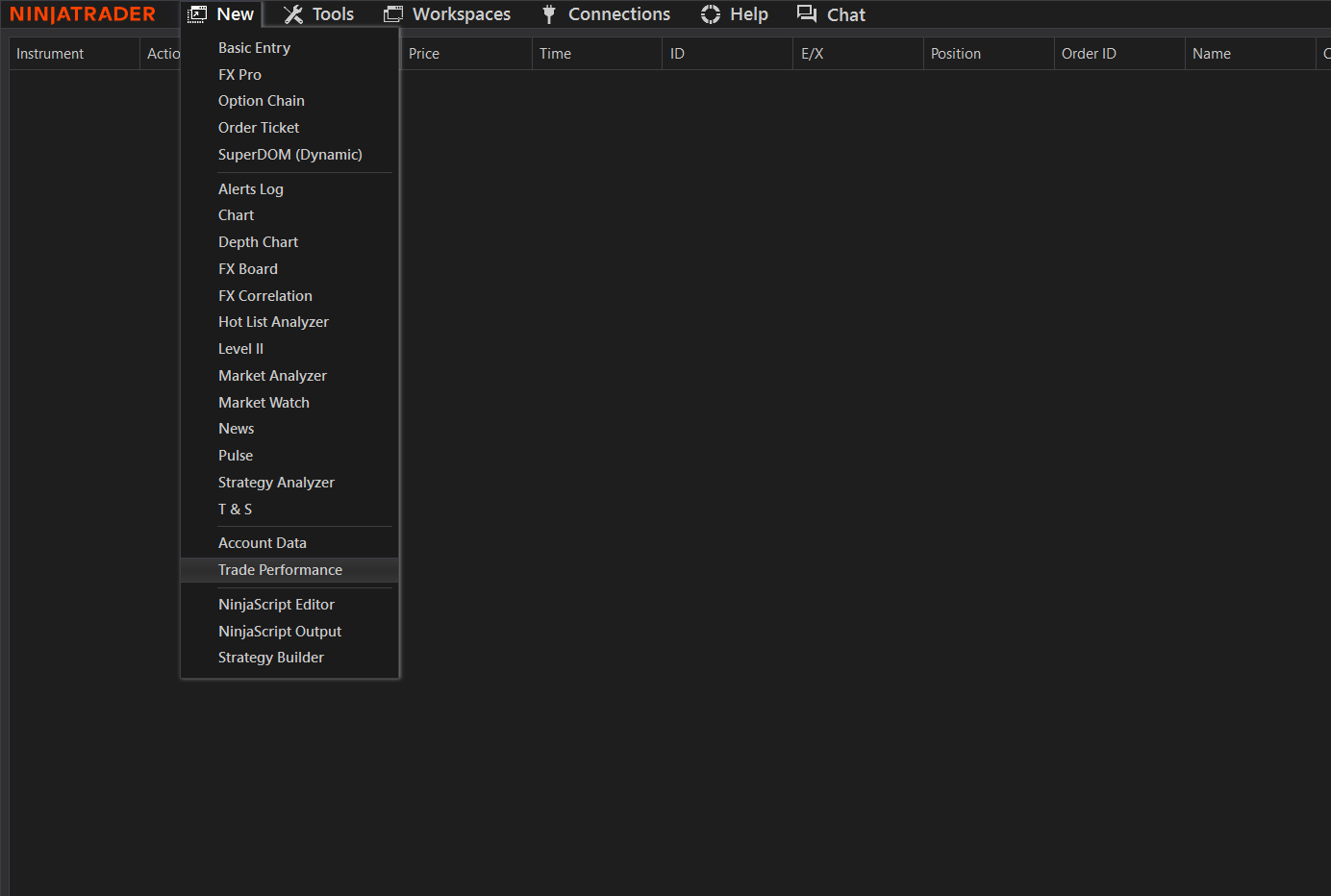
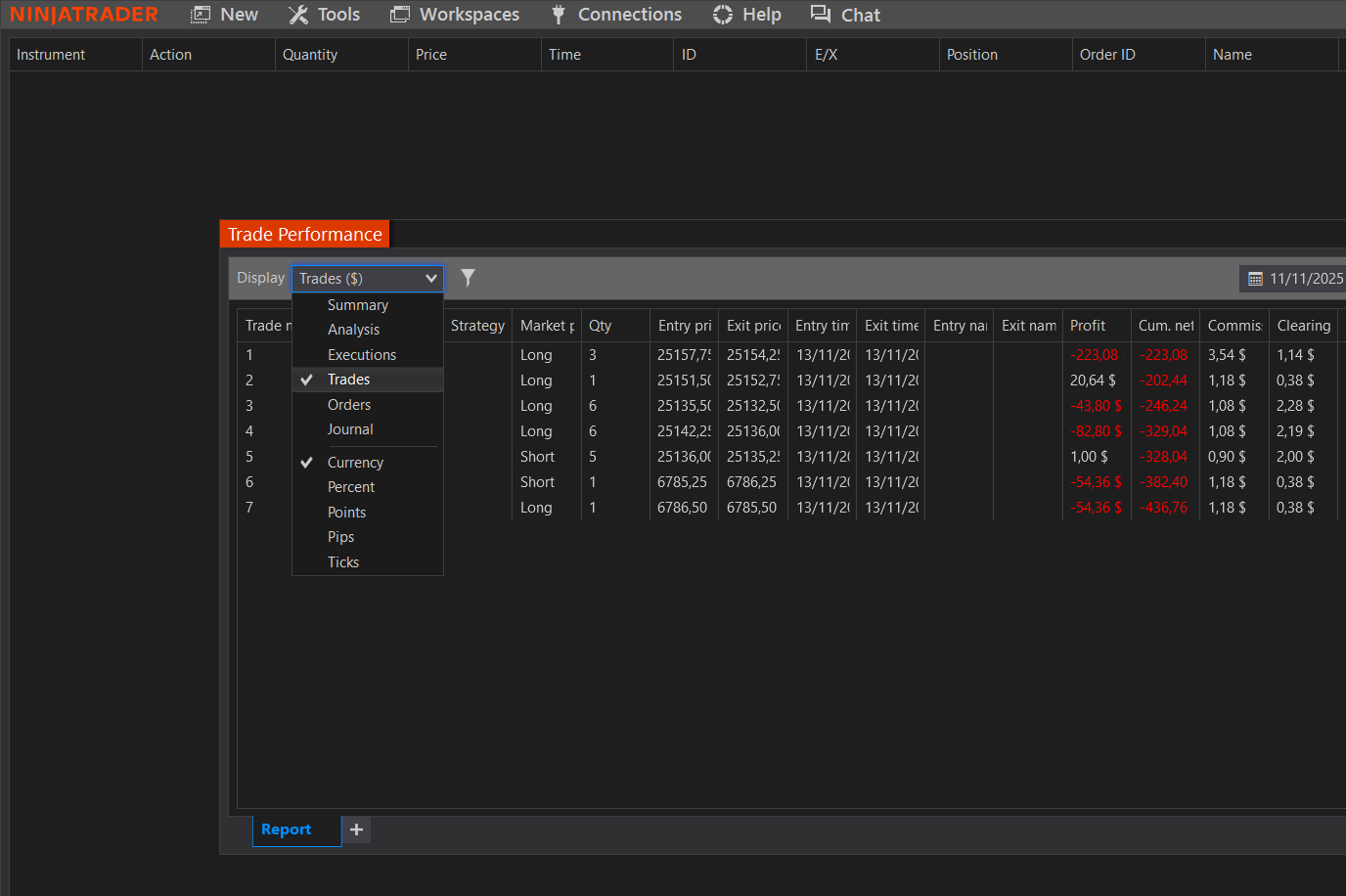
- Select
Tradesunder theDisplaydropdown.
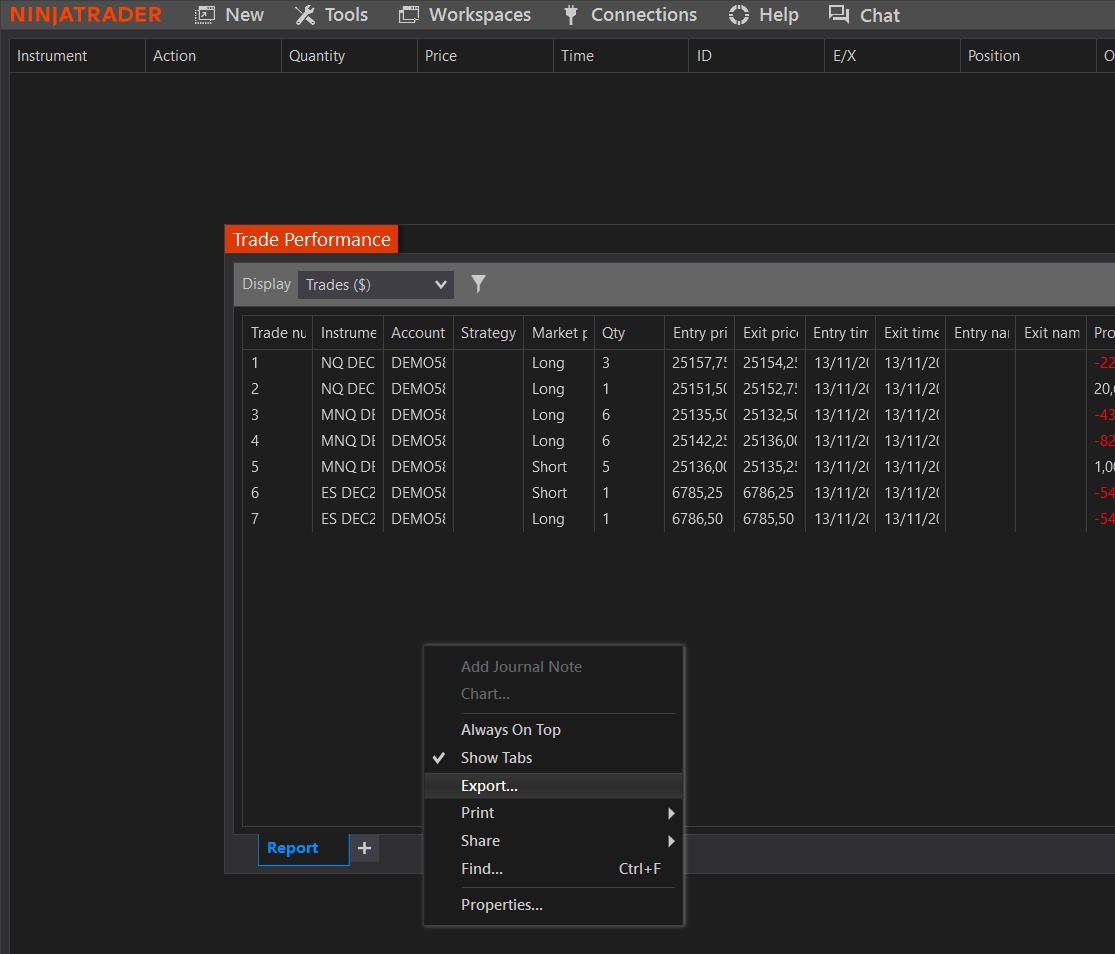
- Right click in any point without trades, and press
Export.
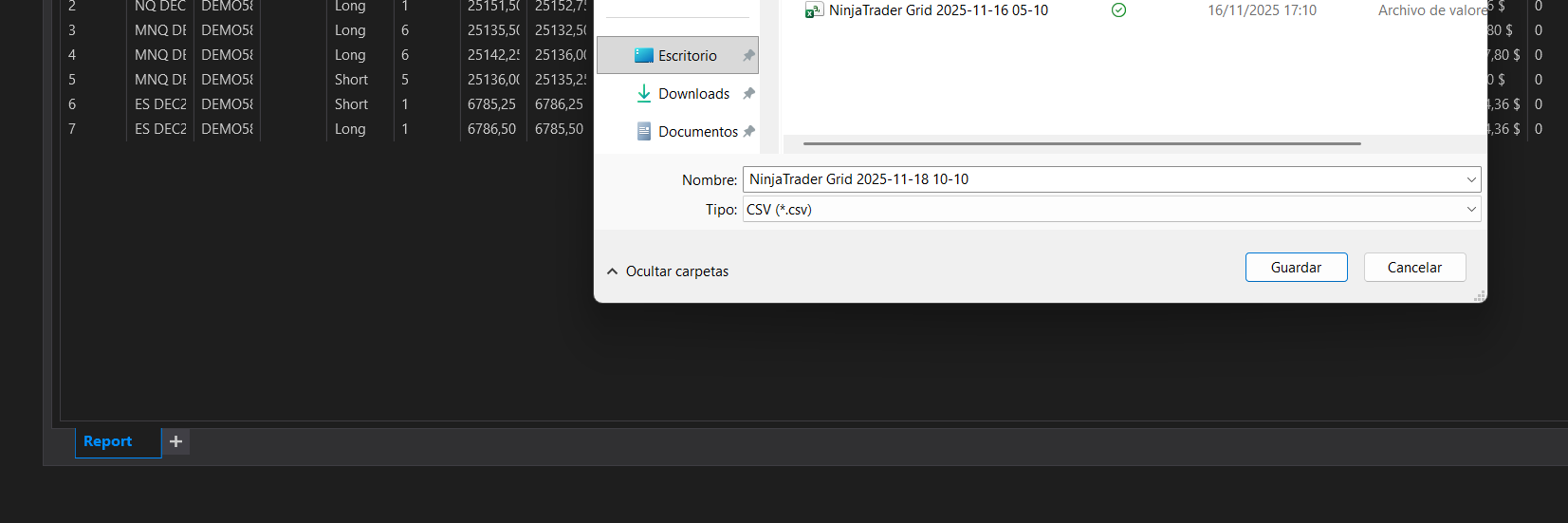
- Make sure the format is set to
CSV (*.csv), and save the file to a known location, as you will need this file later.
Step 4: Import the trades into TradesPad
Find the account you previously created, press
≡on the right bottom corner of the account card, and press Import Trades.Select the file you previously downloaded from Ninjatrader, after processing you will see the number of trades that have been detected.
Press Import Trades, and the trades will be added to your account immediately.
Important notes
Existing trades will not be overwritten when importing another CSV.
Ninjatrader must be in English prior to exporting CSVs. Otherwise trades won't be imported.
Trouble connecting? Double-check that you have followed all steps in Step 3 and Step 4 correctly. If you continue to experience issues, contact TradesPad technical support (support@tradespad.com or join our discord)
Changing language
You will need to change the languae to English before exporting CSVs. To do that follow these steps:
- Open
Tools > Settingsin the top bar. Settings is the last option of the dropdown.
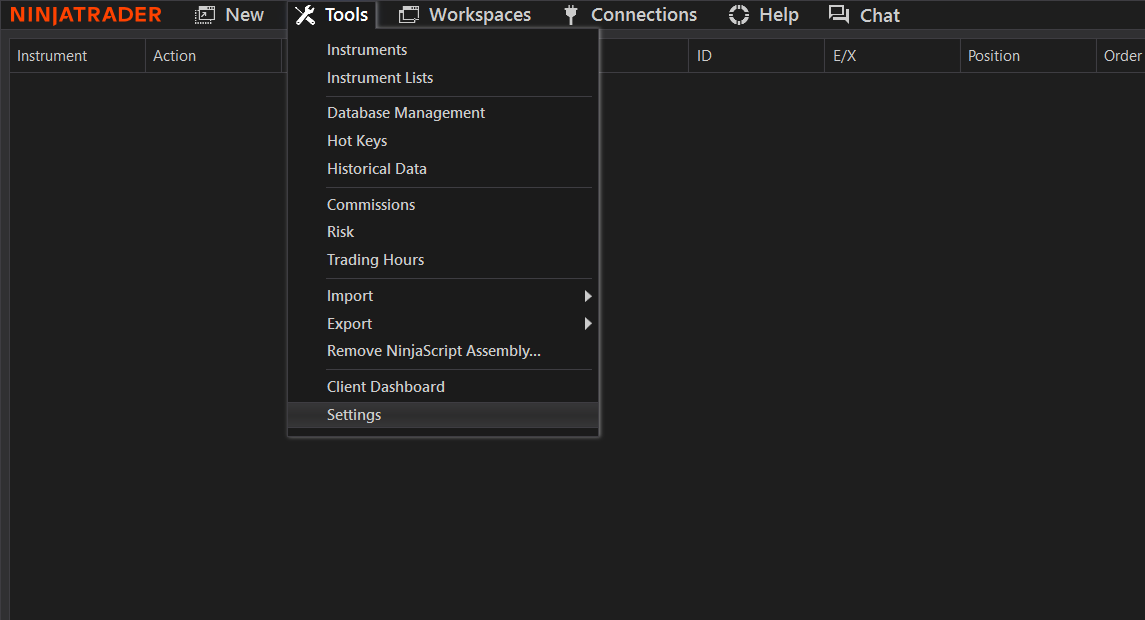
- Open
Generaland changeLanguageto English
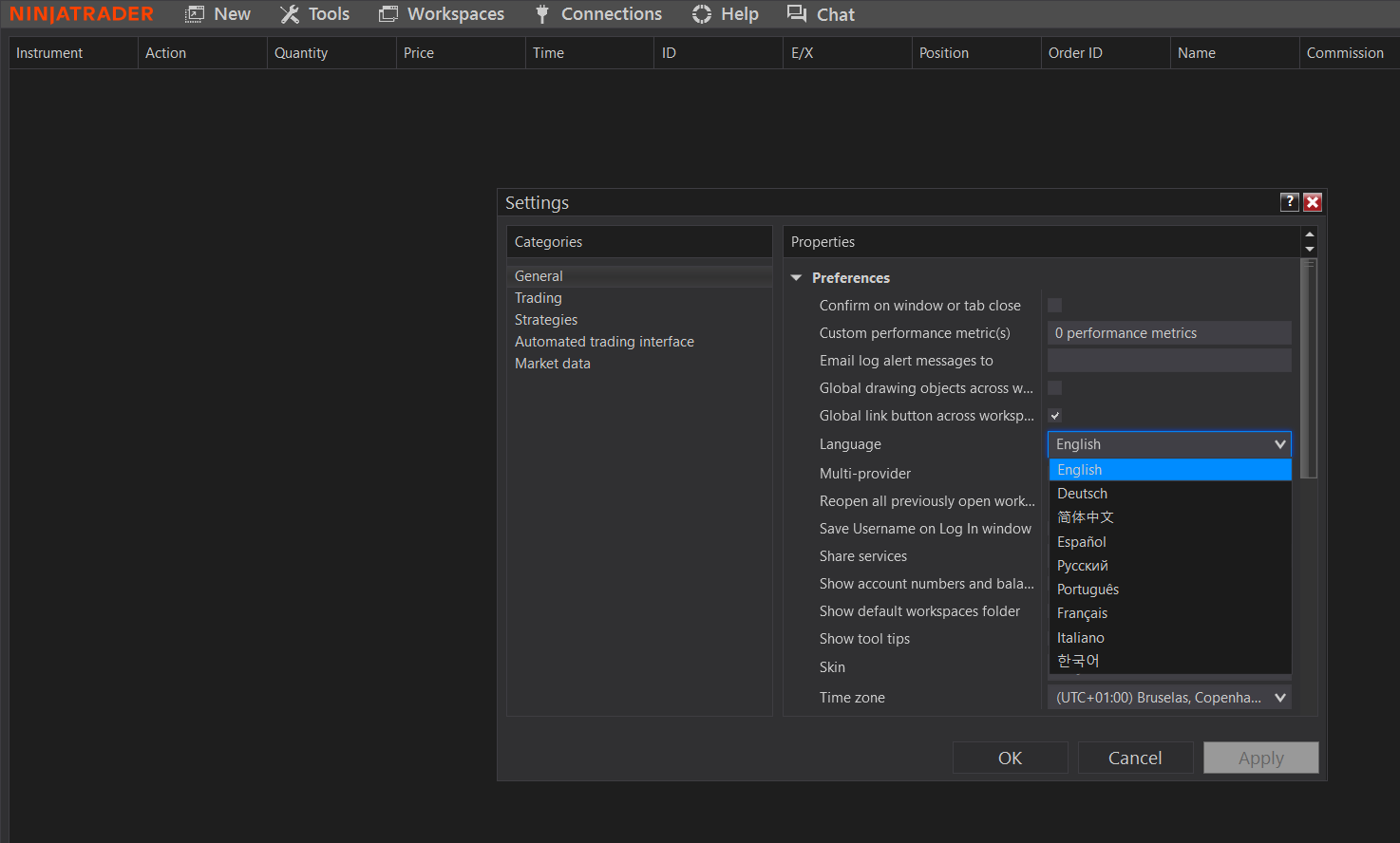
- Well done! Now you're ready to get back to Step 1 to export your CSVs
Old Method
This is the old method to extract trades by orders. Do not use unless you have problems with the new method (Using Trade Performance)
Step 1: Access your TradesPad account
Once logged into your TradesPad account, go to the Accounts section from the main menu.
Step 2: Add a new account
Click the Add account button.
In the dropdown, select the Automatic option to connect your trading account.
Select Ninjatrader as the platform.
Fill in all required fields and press save.
Step 3: Export your trades from Ninjatrader
Open the Ninjatrader app in desktop
Ensure it is in English. Otherwise, see Changing language.
In the orders tab, open Executions
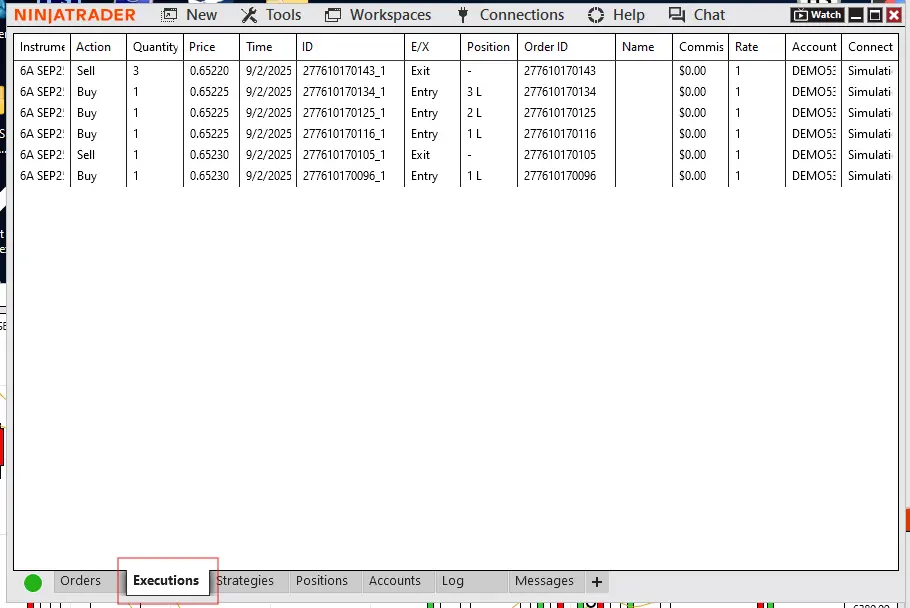
- Right click in an empty space and press Export
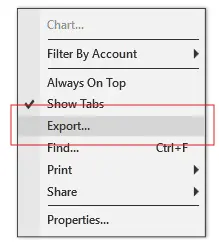
- Export the file as CSV. Make sure not to select other format.
Step 4: Import the trades into TradesPad
Find the account you previously created, press
≡on the right bottom corner of the account card, and press Import Trades.Select the file you previously downloaded from Ninjatrader, after processing you will see the number of trades that have been detected.
Press Import Trades, and the trades will be added to your account immediately.